![PALUSA New Logo Transparent-1.png]](https://helpcenter.skywire.com/hs-fs/hubfs/PALUSA%20New%20Logo%20Transparent-1.png?height=50&name=PALUSA%20New%20Logo%20Transparent-1.png)
Functions
- Select “Function” to access the following:
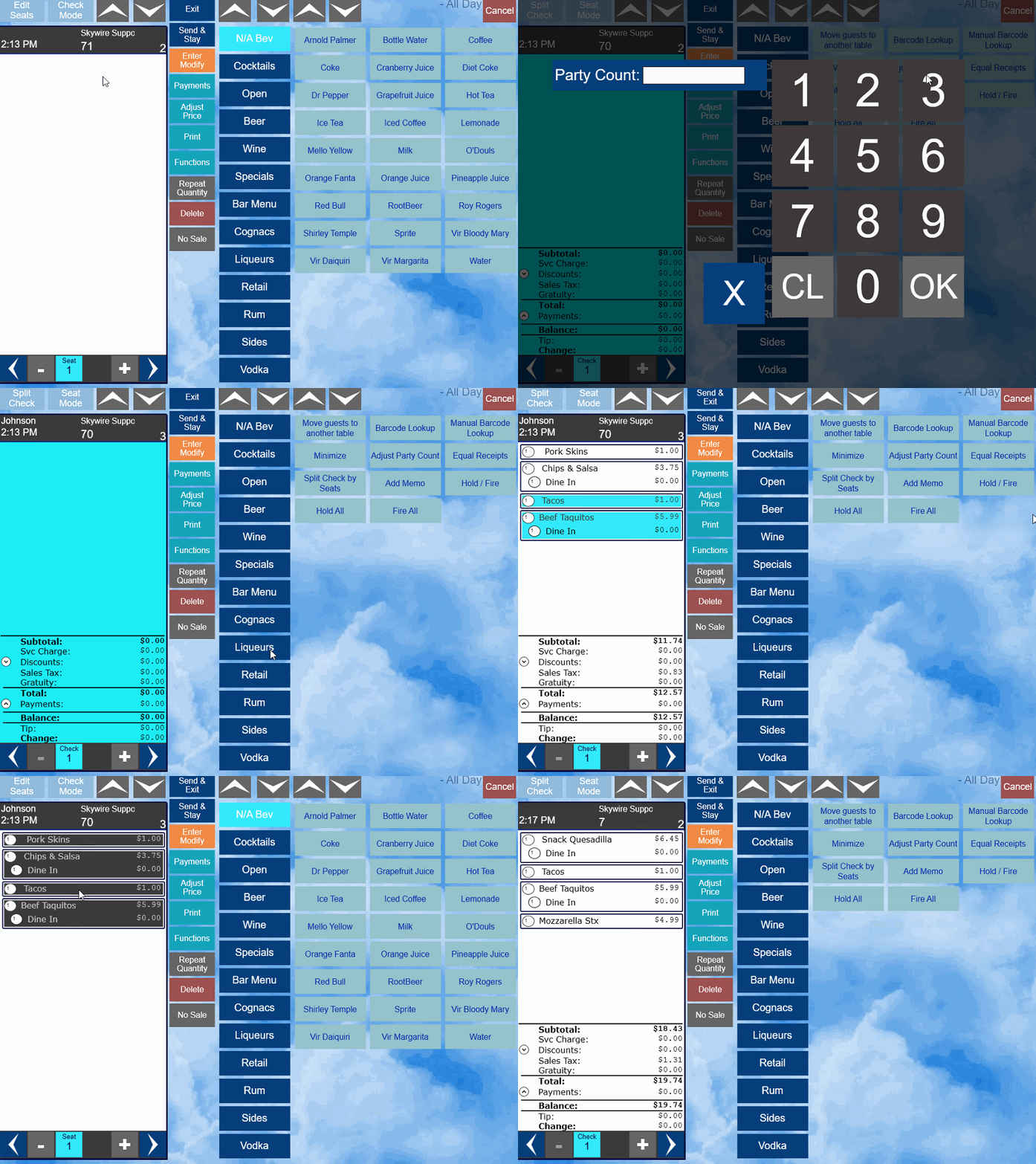
- Move guest to another table
- Adjust Party Count
- Equal Receipts
- Split Check by Seats
- Add Memo
- Hold / Fire
- Bar-Code Lookup

Modify Table Number
- This function allows you to change the table number of a check.
- Select “Functions.”
- Select “Move guest to another table.”

- Enter the new table number.
- Select “OK.”

Adjust Party Count
- The party / guest count can be modified at any time.
- Select “Function.”
- Select “Adjust Party Count.”

- Enter new guest / party count.
- Select “OK.”

Naming an Order
- To add a reference to the order, select “Functions.”
- Select “Add Memo.”

- Enter a name for the order.
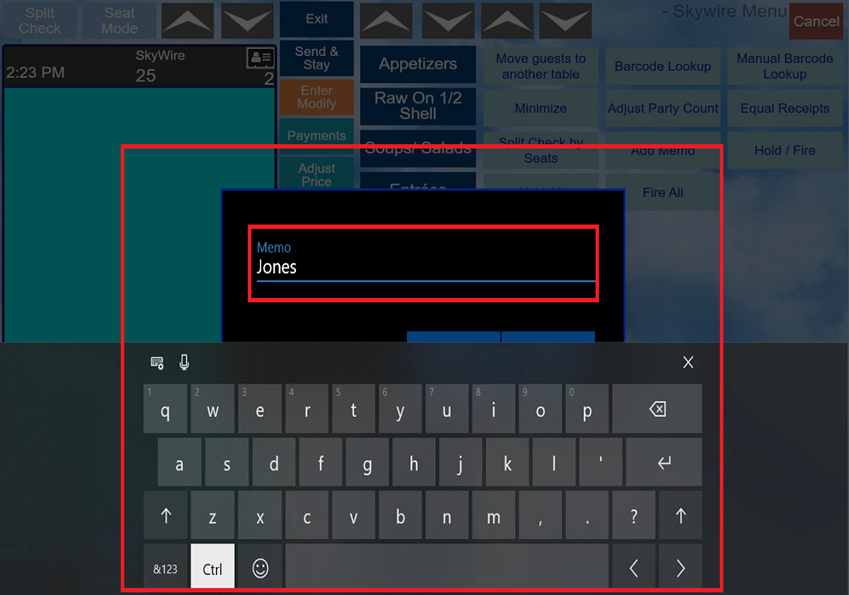
- Select “Confirm.”
- Note: The reference will appear on the screen by the order/table number and print on the check.

Hold / Fire Functions
- By default, products that are configured to print remotely are sent to the kitchen or the bar after selecting “Send & Stay” or “Send & Exit.”
- Products can be held and fired by using the “Hold / Fire” buttons which is accessible from the functions tab.

How to Hold an Item
- Select “Function.”
- Select the item or items to be held.
- The modifiers attached to the item will be held as well.
- Items selected will appear in blue.
- Select the “Hold / Fire” button to activate the hold function. The item or items held will appear in pink.


- Orders with held items will show in pink at the main screen.

How to Fire Items
- Select “Function.”
- Select the item or items to be fired.
- The modifiers attached to the item will be fired as well.
- Items selected will appear in blue.
- Select the “Hold / Fire” button to activate the fire function.
- The item or items will appear in white.
- Select “Send & Exit” or “Send & Stay” to save the check and fire items.


How to Hold or Fire All Items
- Select “Function”.
- Select “Hold All” or “Fire All” to hold or fire all items.
- No items need to be selected prior to activating this function.

Bar-code Lookup
- Use this function to find a bar-code item.
- Select “Bar-code Lookup” to look up an item with a bar code scanner.

- Select “Manual Barcode Lookup” to look up an item by entering the number of the barcode manually.

Video - Order Functions