![PALUSA New Logo Transparent-1.png]](https://helpcenter.skywire.com/hs-fs/hubfs/PALUSA%20New%20Logo%20Transparent-1.png?height=50&name=PALUSA%20New%20Logo%20Transparent-1.png)
Create a Table map in Table Reserve Web Site.
- Sign-in to Table reserve Web Site http://www.tablereserve.com/Default.aspx
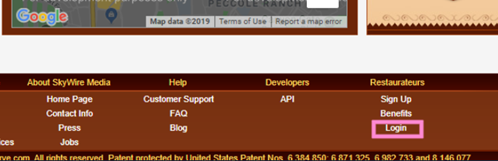
- Select “Login.”
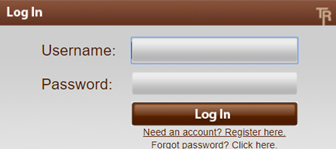
- Use the following login information, depending on the property.
For new property information can be obtained from the development department or created a new Table Reserve Account. (A fee may apply)
|
LVDM UserName: SRGLVDM Password: 5RG-1^Dm! |
TVN UserName: srgtvn Password: TVe!$E8j6N |
MVA UserName: MARAVILLA Password: P@ssw0rd1 |
- Select Configure.

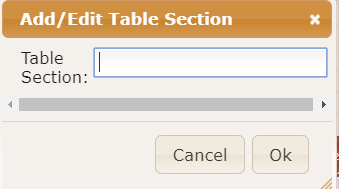
- Select Table Configuration and Add section.
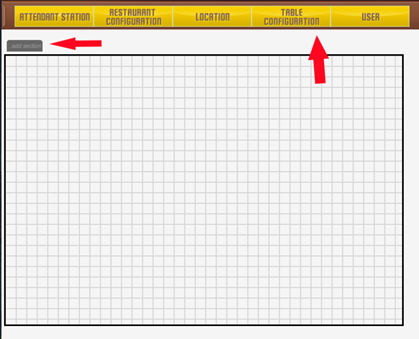
- Name Section and select OK
Note: You can add as many sections as you need.
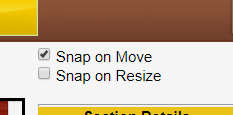
- Select Snap on Move.
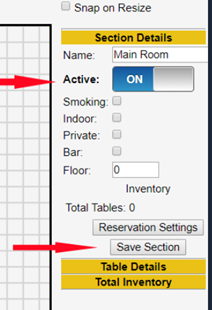
- Open Section Details and toggles Active to ON.
- Save Section.
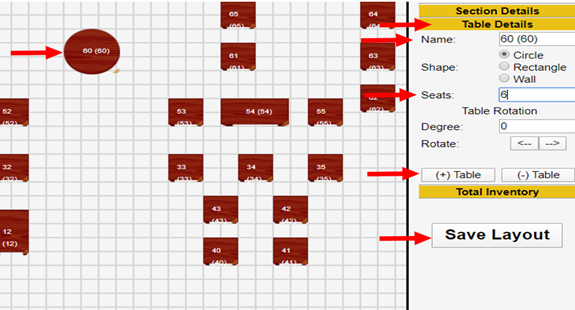
- Open Section Table Details.
- Enter a table Number on “Name section” Example 60 enter as 60 (60)
- Enter Number of persons per table.
- Select New Table
- Move the table to the correct location.
- Select the Save Layout.
Adding Layout on Terminals
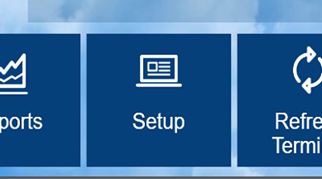
- Login into the terminal and go to Set-up Tab.
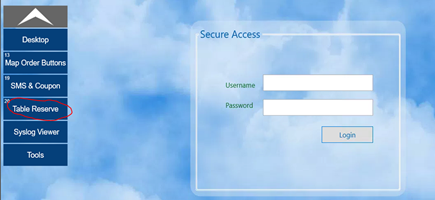
- Log in and go to Table Reserve Tab.
- Select Edit Form.

- Check Enable Table Reserve.
- Do Not enter a password.
- Enter Public Key. (See Page 7)
- Enter Private Key. (See Page 7)
- Do Not Select Test Setting.
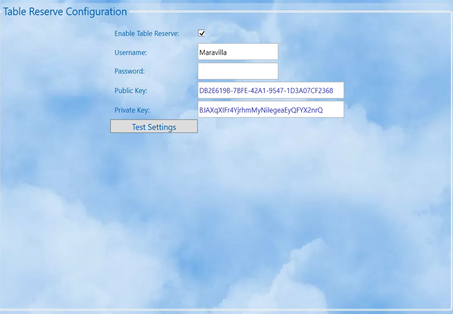
Note: You only need to do this process on one terminal per profit center.
How to Obtain Company Name and Keys from Table Reserve.
- Got to Table Reserve Web Page. http://www.tablereserve.com/Default.aspx
- Log in and select Restaurant Configuration Tab

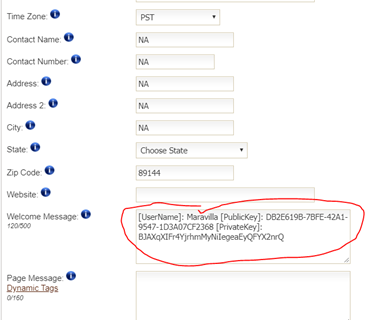
- Information is located in the Welcome Message section.