![PALUSA New Logo Transparent-1.png]](https://helpcenter.skywire.com/hs-fs/hubfs/PALUSA%20New%20Logo%20Transparent-1.png?height=50&name=PALUSA%20New%20Logo%20Transparent-1.png)
Items needed for RoomKey
Server URL - Provided by Room Key
Port = 90 – Configured by Skywire “This is the Gateway Port.”
API Key - Provided by Room Key
Property ID – Provided by Room Key
Profit Center ID – We provide to RoomKey (Run below query to obtain)
*Select name as 'Property Name', Id as 'Property ID' from Properties
where Properties.Name = 'XXXX' –- XXXX = Enter the profit Center you are working on*
IIS Settings
Build an application pool.
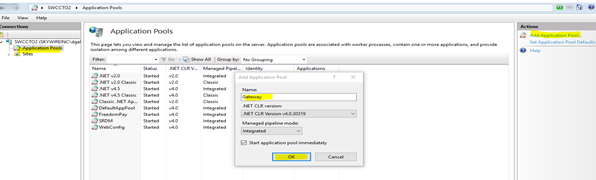
Binding/Port = 90
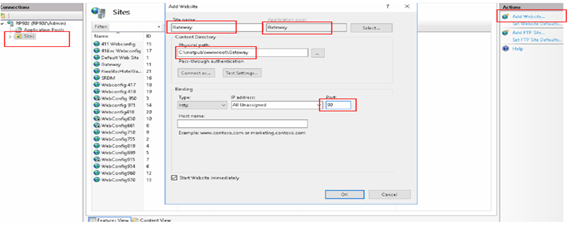
Select Site
Site Name: Gateway-
- Application Pool: Select Gateway
- Physical path: select the Gateway folder ( C:\inetpub\wwwroot\Gateway )Select Add Website ( Top Right )
- Port: enter 90
-
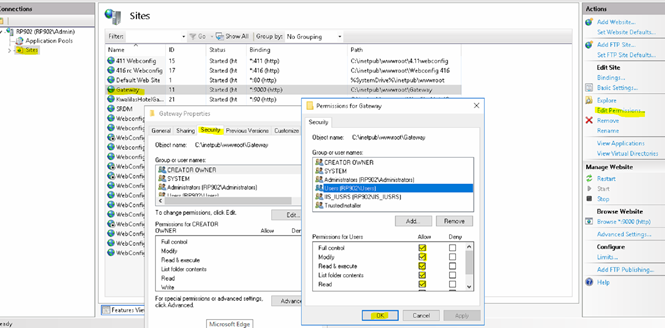
- Select Security Tab
- Allow permission to all users and select OK
Restart Services
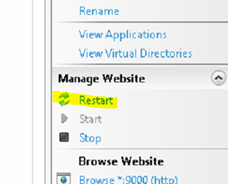
Gateway Settings
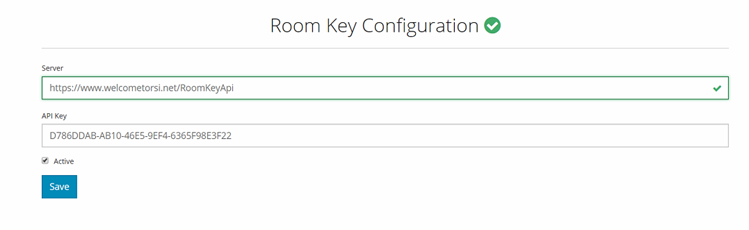
Go to URL: http://localhost:90 , select Property Management, select RoomKey Tab, update necessary information.
Server = URL provided by RoomKey
API Key = Key provided by RoomKey
- Select Active
- Select Save
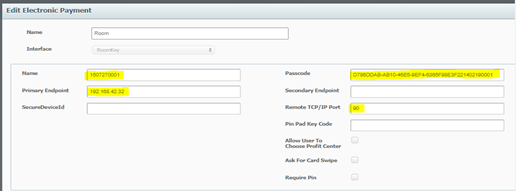
Electronic Payment Setup
- Name = Property ID (Inn code provided by RoomKey)
- Primary Endpoint = Terminal IP where Gateway is installed
- Port = 90
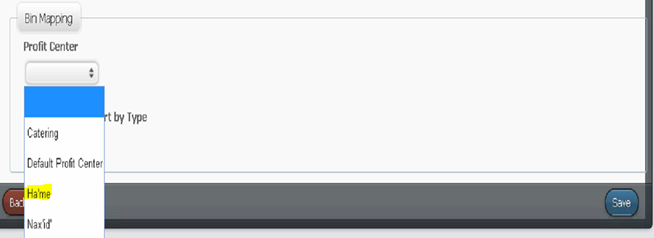
Add bin mapping
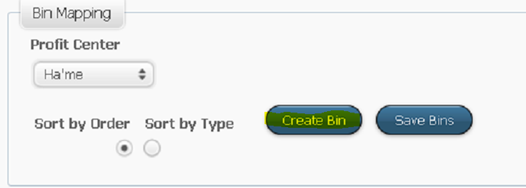
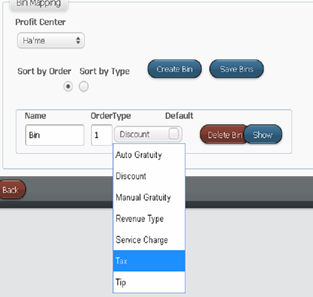
Select Tax
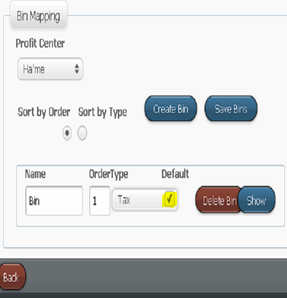
Check Default
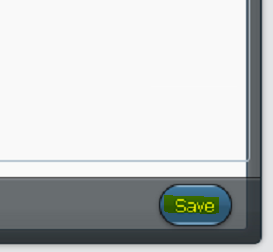
Select Save
Tender Setup
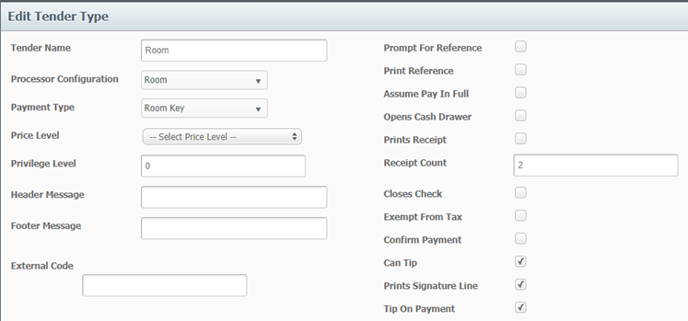
- Tender Name = Room
- Processor Configuration = Room (Electronic Payment)
- Payment Type = Room key
- Receipt Count = 2
- Can Tip = Yes
- Prints Signature Line = Yes
- Tip on Payment = Yes
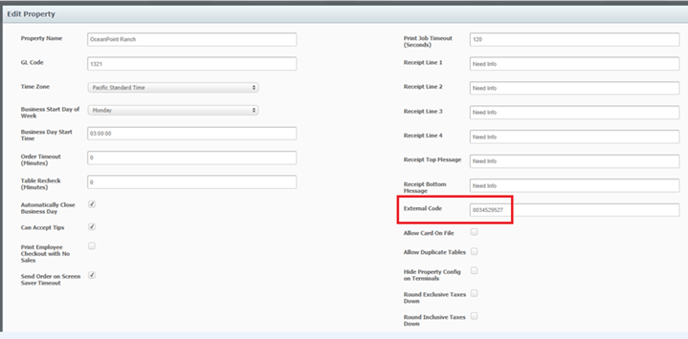
Property Setup
- External Code = Property ID (Inn code provided by RoomKey)
Profit Center
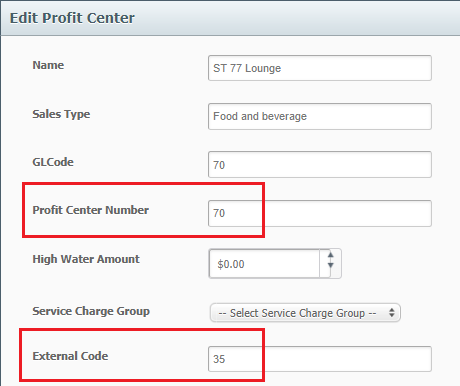
- Profit Center Number = Profit Center Number.
- To get profit center number, you can run the following query.
select Name, ordinal from ProfitCenters
- External Code = Profit Center Number